
Equalizer APO
Equalizer APO is one of the most trusted free audio equalizers for Windows. If your computer’s sound ever feels unbalanced, maybe the bass drowns everything out, the vocals sound too sharp, or the music just lacks energy, this tool can fix that.
It’s an open-source program that gives you full control over how your PC sounds. Whether you’re gaming, streaming, or producing music in a home studio, Equalizer APO helps you fine-tune every detail of your audio without slowing down your system.
Lightweight, powerful, and simple to set up, Equalizer APO stands out as one of the best sound equalizers for Windows users who want clear, rich, and customized audio.
What Is Equalizer APO?
Equalizer APO is an audio processing object (APO) for Windows systems. In simple terms, it changes how sound behaves before it reaches your speakers or headphones.
Developed by Jonas Thedering, this open-source tool lets you adjust sound across every program on your PC. It supports Windows 7, 8, 8.1, 10, and 11. Whether you use it for movies, video calls, or mixing music, it can make a big difference.
You can even combine it with tools like Voicemeeter or Room EQ Wizard to push your audio setup further.
Why Users Love Equalizer APO
So why has Equalizer APO become a favorite among sound lovers, gamers, and streamers? Here are a few reasons.
Lightweight and Efficient
Equalizer APO uses very little CPU or RAM. It runs in the background, so you won’t see it as an open program. This helps it work smoothly, even on older or less powerful computers.
Unlimited Filters
You can add as many filters as you want. High-pass, low-pass, peak, or shelving filters are all available. Each filter lets you tweak the sound’s frequency and gain with precision.
If you want deeper bass for your headphones, you can do that. If you need to cut background noise in voice recordings, that’s simple as well.
Works With Multiple Devices
Whether you use speakers, headphones, or virtual audio device,. Equalizer APO lets youset upy different settingsforo eachone. Yyou can switch between themand keep your preferences.s.
Real-Time Adjustments
You can adjust settings and hear the changes right away. You don’t have to restart your computer every time you make a tweak. This is helpful if you like to experiment until the sound is just right.
Compatible With VST Plugins
For audio professionals or curious tinkerers, Equalizer APO supports VST plugins. These let you add more effects, instruments, and filters, expanding what you can do with your setup.
Open Source and Free
You can download and use it for free. The open-source community keeps it updated and reliable, so you always get the latest features.
System Requirements
You don’t need a high-end setup. Here’s all you need:
- Windows 7, 8, 8.1, 10, or 11
- Administrator access for installation
- Any playback device such as headphones or speakers
If your computer can run modern Windows programs, it can run Equaliz
How to Install Equalizer APO
Installing Equalizer APO is simple if you follow these steps.

- Download the latest version of Equalizer APO from the our website.
- Locate the downloaded file and double-click EqualizerAPO.exe.
- Click Next on the setup screen until you reach the device configuration page.
- Select the playback devices you want Equalizer APO to manage. For example, choose “Speakers” or “Headphones.”
- Click OK to confirm your selection.
- Restart your computer to apply the changes.

After you restart, the equalizer works in the background and is ready to help you adjust your sound.
How to Use Equalizer APO
Now that you’ve installed Equalizer APO, let’s walk through how to use it on your computer. Don’t worry if the interface looks complicated at first. Once you follow these steps, you’ll see how simple it actually is.
Step 1: Open the Configuration Editor
Press Windows + E to open File Explorer on your PC.
Go to C Drive, then open the Program Files folder.
Inside that folder, find and open the Equalizer APO folder.

Now, double-click the Editor file to launch the software. This opens the Equalizer APO Configuration Editor, where you’ll make all your audio adjustments.
Step 2: Add a Configuration File
Once the editor is open, click the green plus (+) button at the top left corner of the window.
Select Control, then click Include.
Next, click the blue folder icon to open a file explorer window.
Right-click inside that window and select New > Text Document.
This file will act as your custom configuration where all your equalizer settings are stored.
Step 3: Add Your Audio Device
After creating your configuration file, click the green plus (+) icon again.
Choose Control, then select Device (Select Device) from the list.
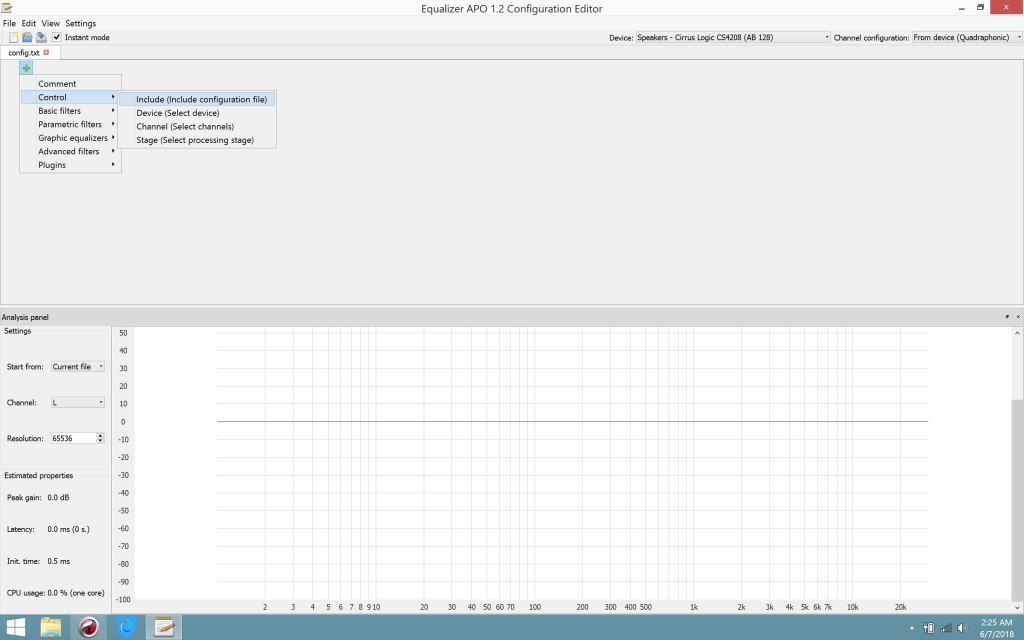
A new window will pop up showing all available playback devices connected to your PC, such as speakers, headphones, or external audio interfaces.
Pick the device you want to apply the equalizer to, then click OK.
Step 4: Adjust the Preamp Settings
Now comes the fun part. You’ll see a Preamp control inside the editor.
This allows you to change the sound gain level (measured in decibels, or dB).
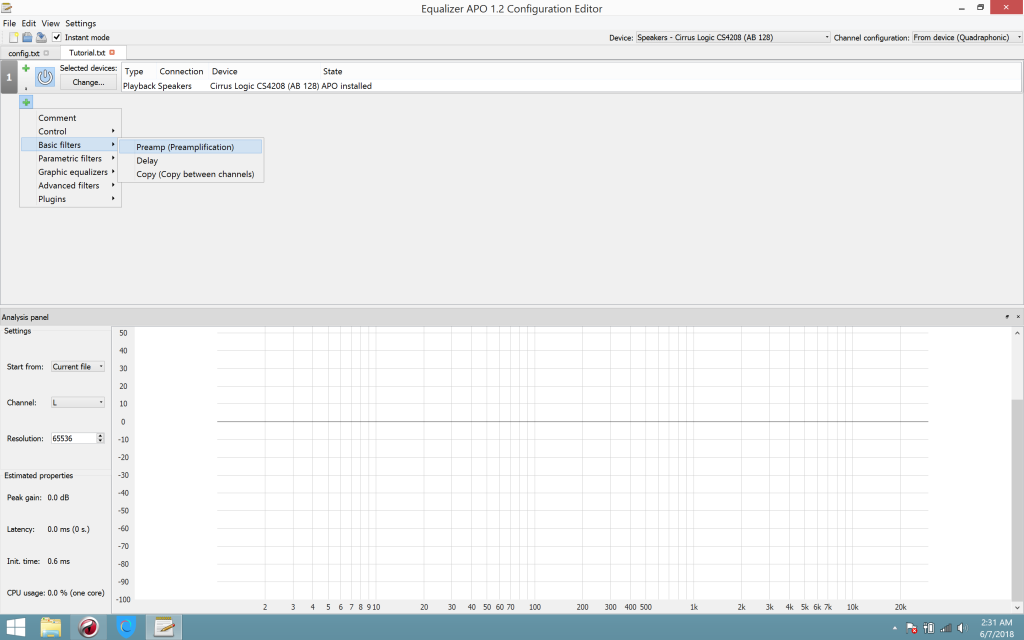
You can increase or decrease the gain anywhere between -20 dB and +20 dB depending on how much boost or cut you want.
For example, increasing the gain slightly can make your sound louder and more powerful, while decreasing it can help remove distortion.
Step 5: Save Your Configuration
Once you’re happy with your settings, click File in the top-left corner and choose Save.
This saves your custom configuration so you can load it any time you open Equalizer APO.
Step 6: Test Your Sound
You can now play some music or a video to test the changes in real time. If you want to adjust something, just go back to the editor, tweak the sliders or values, and hit save again. No restart needed.
You can adjust bass, treble, and other sound frequencies to your liking. For instance, boost the bass for deeper beats or increase the midrange for clearer vocals.
Step 7: Apply Settings Anytime
Whenever you want to change or improve your sound again, simply open Equalizer APO’s Configuration Editor, load your saved file, and make the adjustments you need.

It’s that simple. Once you’ve set it up, Equalizer APO will automatically apply your sound preferences every time you use your computer.
Troubleshooting Tips
Sometimes Equalizer APO doesn’t seem to work right away. Here’s how to fix the most common issues.
- Check the correct playback device is selected in the Configurator tool.
- Restart your computer after installation; this activates the software.
- If you switch audio devices, run the Configurator again to reapply settings.
- Turn off exclusive mode in Windows Sound Settings. This prevents apps from blocking Equalizer APO.
Once these small details are handled, the software usually works flawlessly.
FAQs
1. Is Equalizer APO safe?
Yes. It’s open-source, secure, and used by a large global community.
2. Does it work with Bluetooth headphones?
Yes, as long as your Bluetooth device is recognized as an audio output by Windows.
3. Can it handle surround sound?
Definitely. It supports multi-channel setups like 5.1 and 7.1 without extra effort.
4. What’s the difference between Equalizer APO and Peace Equalizer?
Equalizer APO is the main engine that processes audio. Peace Equalizer is an optional graphical interface that makes adjustments easier.
5. Does Equalizer APO need to stay open to work?
No. Once configured, it runs in the background and keeps your settings active.
Conclusion
Equalizer APO doesn’t have fancy graphics, but that’s what makes it appealing. It focuses on one thing giving you control over your computer’s sound and does it very well.
It’s lightweight, reliable, and free. After you try it, you’ll notice how much better your computer can sound. Whether you want stronger bass, clearer highs, or balanced mids, Equalizer APO can help.
Download it, try out some settings, and enjoy audio that sounds just right. Once you set up your system the way you like, you might wonder how you ever did without it.